Flow Director MCP Server
Describe it. The AI builds your SwiftMQ app.
Connect Claude Code or Codex to Flow Director, describe what you want to see in plain language, and get a complete app with flows, live dashboards and alerts in 30 to 45 minutes.
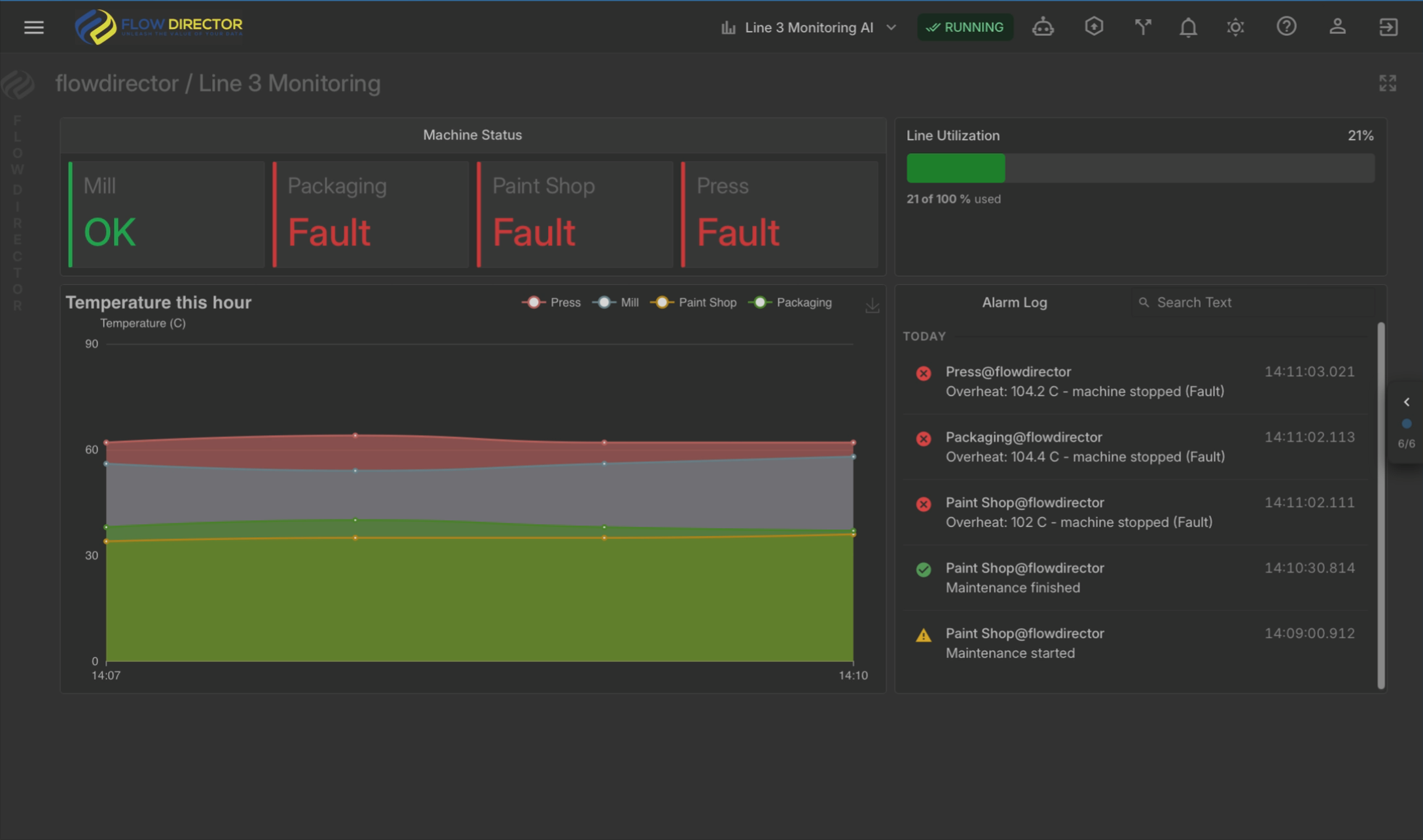
A dashboard built by the AI from a single prompt: live machine status, temperature trend, utilization and alarm log.
Your data is already there
Your SwiftMQ routers move telemetry, orders, status events and sensor readings all day. Which machine is overheating? How many orders are stuck? The answers are in the messages you already route, but most of them are never looked at.
Building the app is the hard part
Flow Director turns messages into dashboards, alerts and KPIs without code. But someone still has to design the flows, parse the messages and test everything. That takes time and know-how, so it often doesn’t happen.
Describe it. The AI builds it.
Tell the AI what the messages contain, what you want to see and when you want to be alerted. It asks what it needs, proposes a design, builds the app after you confirm, starts it and checks that everything works.
What you get
From message data to live insight
Visibility into your message data
Live dashboards and alerts on what flows through SwiftMQ, not just on queue depths.
Apps in under an hour
A complete app in 30 to 45 minutes, without having to know Flow Director inside out.
Unlimited apps
One license unlocks the MCP server. Every app you build with it is license-free.
More questions answered
Small, specific use cases become worth doing, not only the one big project.
A normal Flow Director app
Open, change and extend the result by hand or with a follow-up prompt.
Your data stays in your system
The app runs in your Flow Director on your SwiftMQ.
How it works
Empty app. Pair. Prompt.
The AI works through the real Flow Director user interface in your browser. You watch every step. The result is a normal Flow Director app.
1
Create an empty app
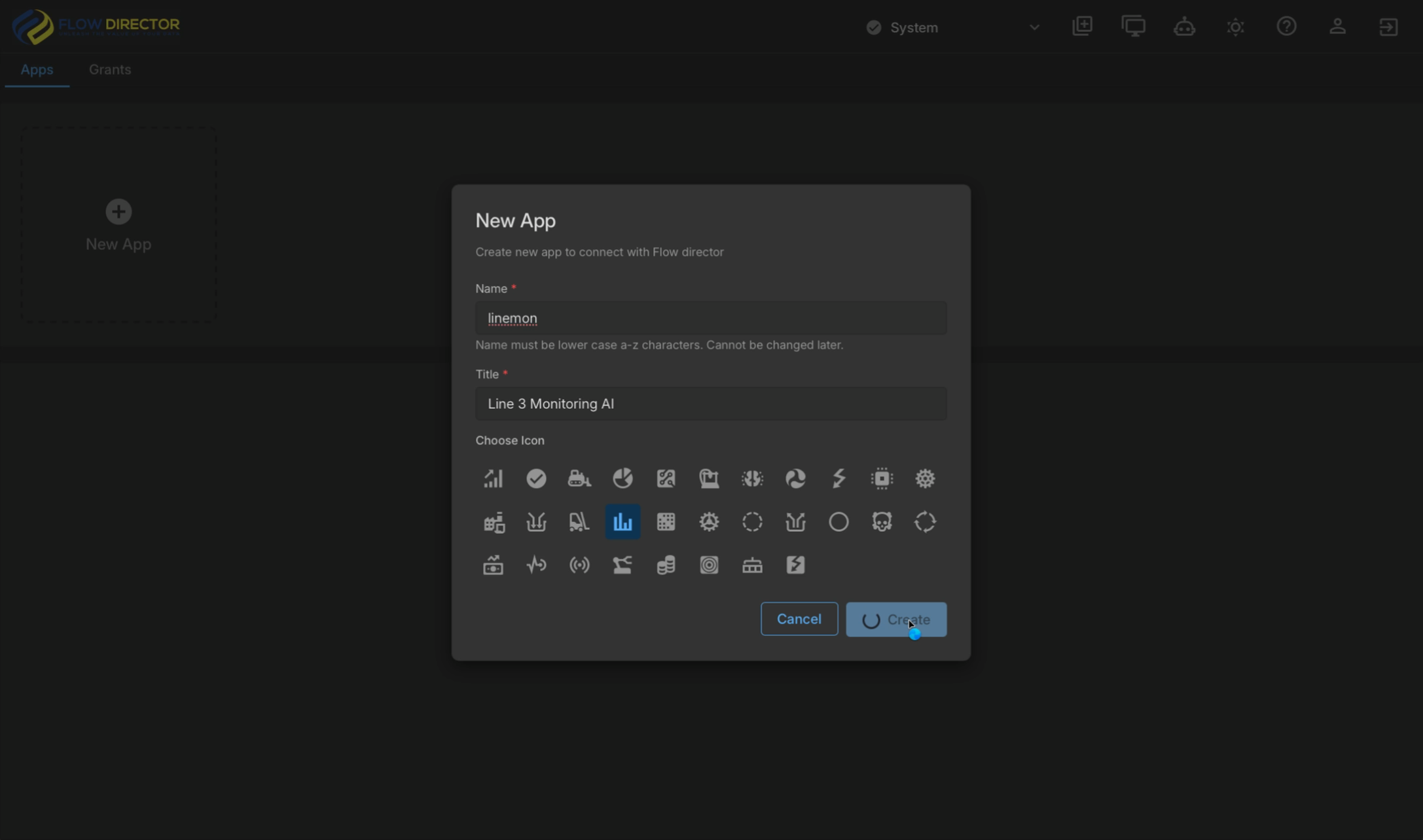
In the System app, open Apps and click New App. Enter a name and a title, pick an icon and click Create. The app starts empty: no flows, no dashboards.
2
Pair your AI client
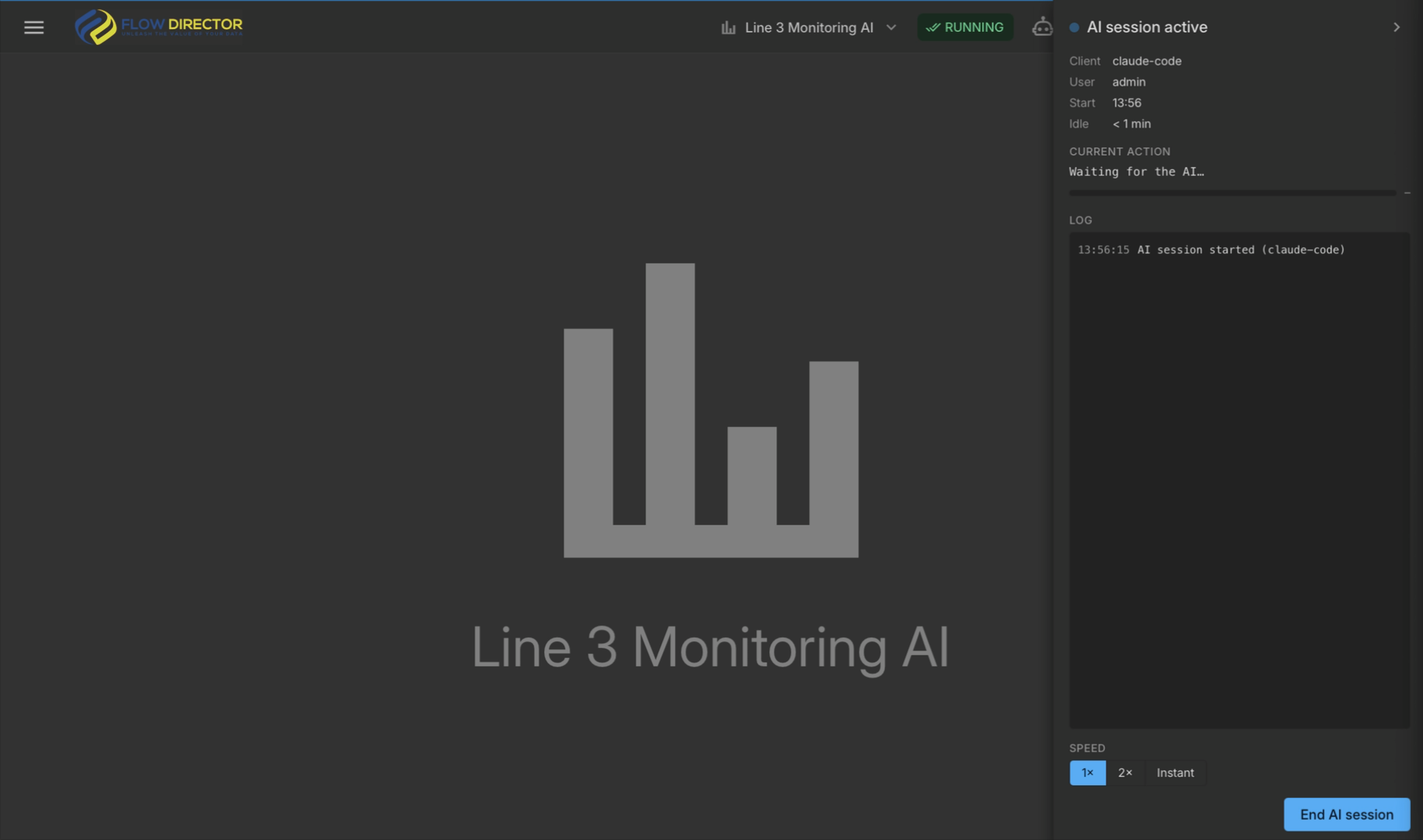
Open the app and click AI session. Flow Director shows the app’s MCP endpoint, your personal token and a ready-to-paste command for Claude Code or Codex. Once the AI connects, the AI session panel shows every step it takes.
claude mcp add --transport http fd-linemon \
  http://localhost:8080/mcp/linemon \
  --header "Authorization: Bearer <your token>"
3
Describe the app
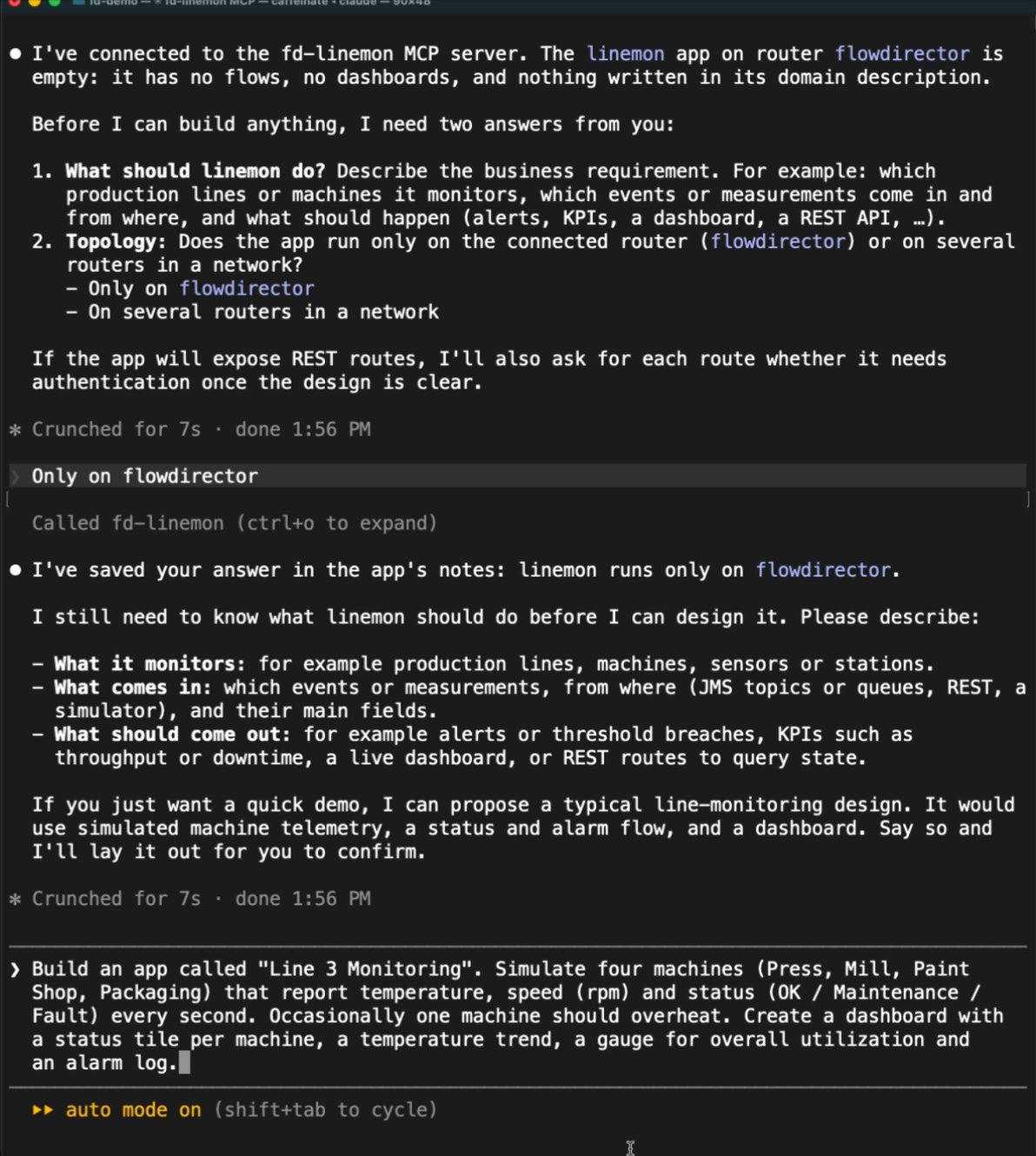
Say what the app monitors, what comes in, what should come out and on which routers it runs. If something is missing, the AI asks. Before it builds anything, it proposes a design and waits for your confirmation.
Build an app called "Line 3 Monitoring". Simulate four machines (Press, Mill, Paint Shop, Packaging) that report temperature, speed (rpm) and status (OK / Maintenance / Fault) every second. Occasionally one machine should overheat. Create a dashboard with a status tile per machine, a temperature trend, a gauge for overall utilization and an alarm log.
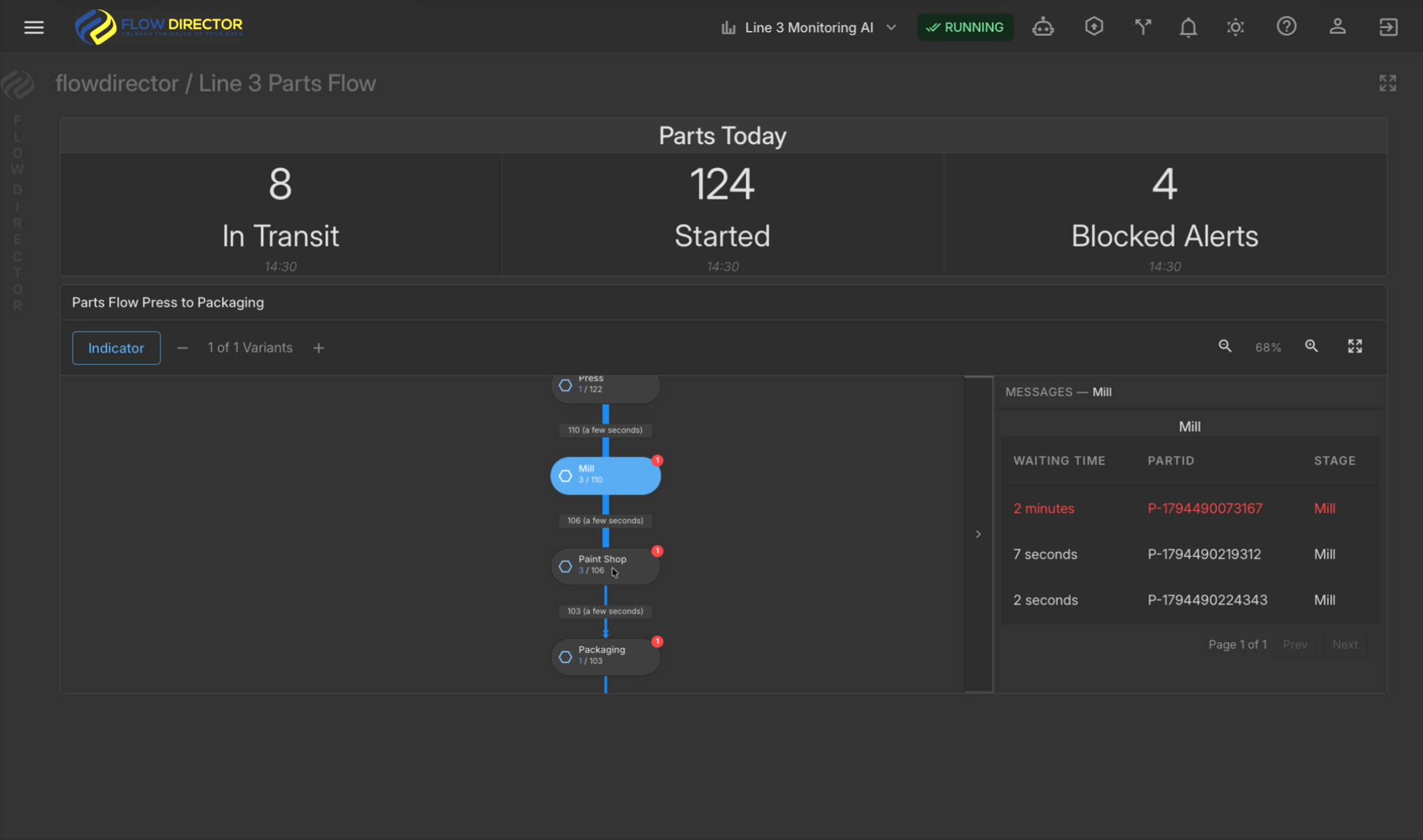
Watch the full walkthrough
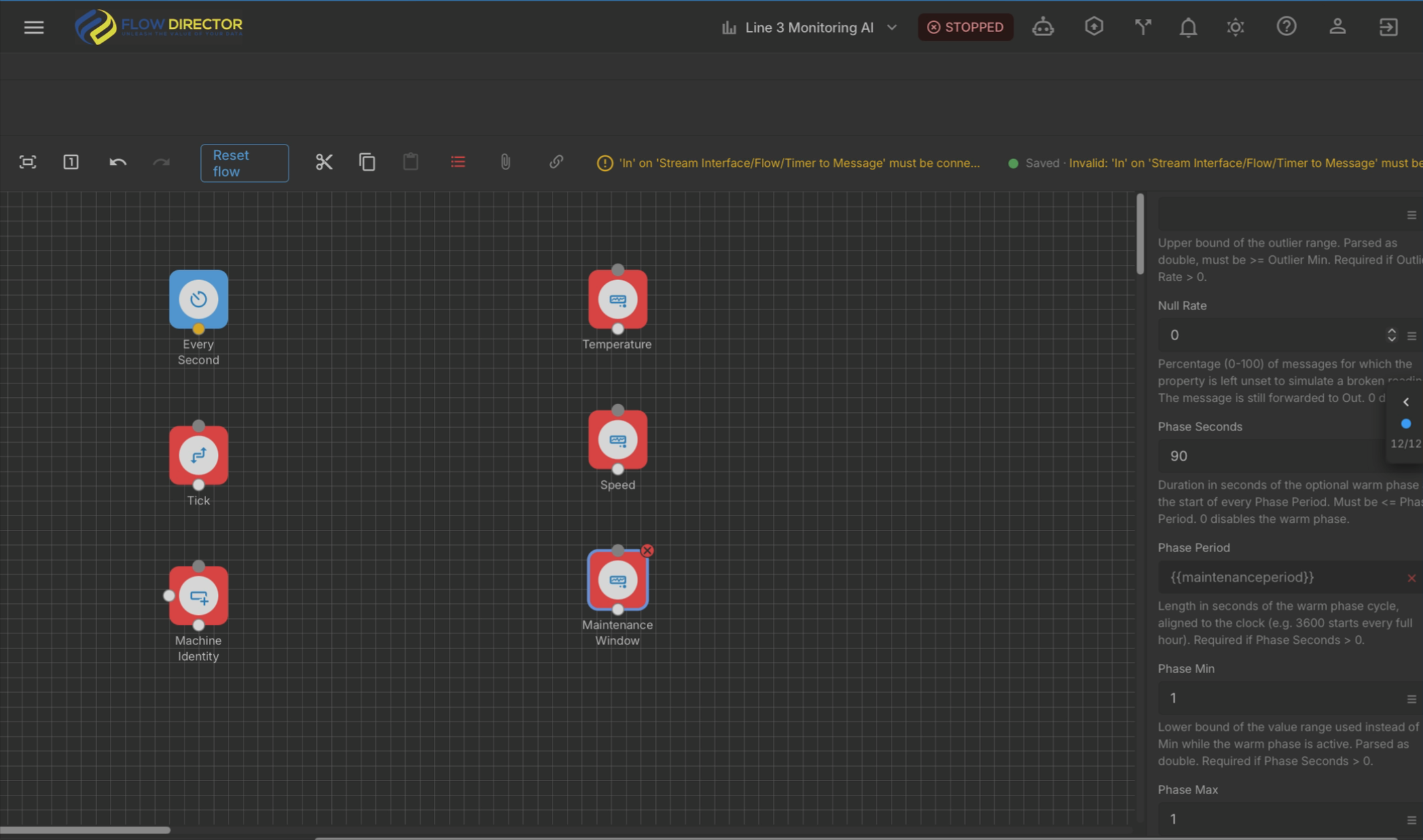
You stay in control
The AI has your rights. Nothing more.
Same rights as you. The AI works through the Flow Director user interface and can see and do exactly what the logged-in user can.
Admins only, own apps only. AI sessions are available to admin users and only for apps you created yourself.
Design first. The AI proposes a design and waits for your confirmation before it builds anything.
Watch and stop. You see every step live in your browser and can end the session at any time.
Full log. Every action is logged and can be downloaded at the end of the session.
No AI in production
Build on dev. Deploy from Git.
1. Build on a development system
The AI session runs against Flow Director on dev, connected to a dev SwiftMQ.
2. Check the app into Git
Commit the finished app, reviewable and versioned like any other change.
3. Deploy to production from Git
Production pulls the app from Git and runs it. No MCP server, no AI session, no AI access.
The AI helps you build faster. What runs in production is a normal, reviewed Flow Director app.
What you need
Ready in minutes
- Flow Director running with your SwiftMQ
- One Flow Director App license to unlock the MCP server (30-day trial available). Build any number of apps; the apps need no license.
- An admin user
- Claude Code or Codex on your computer
Prefer to build by hand or start from a ready-made app? Explore Flow Director Apps